Connect KasLens to ChatGPT
This guide walks you through connecting the KasLens MCP server to ChatGPT so you can query real-time Kaspa market data, analytics, and insights directly in your conversations.
Prerequisites
Before you start, make sure you have:
- A ChatGPT Plus, Pro, Team, Business, Enterprise, or Education subscription , MCP is not available on the free plan
- A verified KasLens account , create one here if you have not already. See the MCP Server Setup guide for details
Reminder: Check your spam/junk folder if you did not receive the verification email from `[email protected]`.
Step 1: Enable Developer Mode
MCP server connections in ChatGPT require Developer mode to be enabled. This is a beta feature that gives ChatGPT full MCP client support.
Important: Developer mode is currently only available in the web version of ChatGPT at chatgpt.com. It is not yet available in the ChatGPT desktop or mobile apps for Plus subscribers. If you have a Plus subscription, make sure you use the web version.
To enable developer mode:
- Go to chatgpt.com
- Click on your profile icon in the top-right corner and select Settings
- In the Settings sidebar, click Apps
- Scroll down to Advanced settings
- Toggle Developer mode on
See the OpenAI Developer mode documentation for more details.
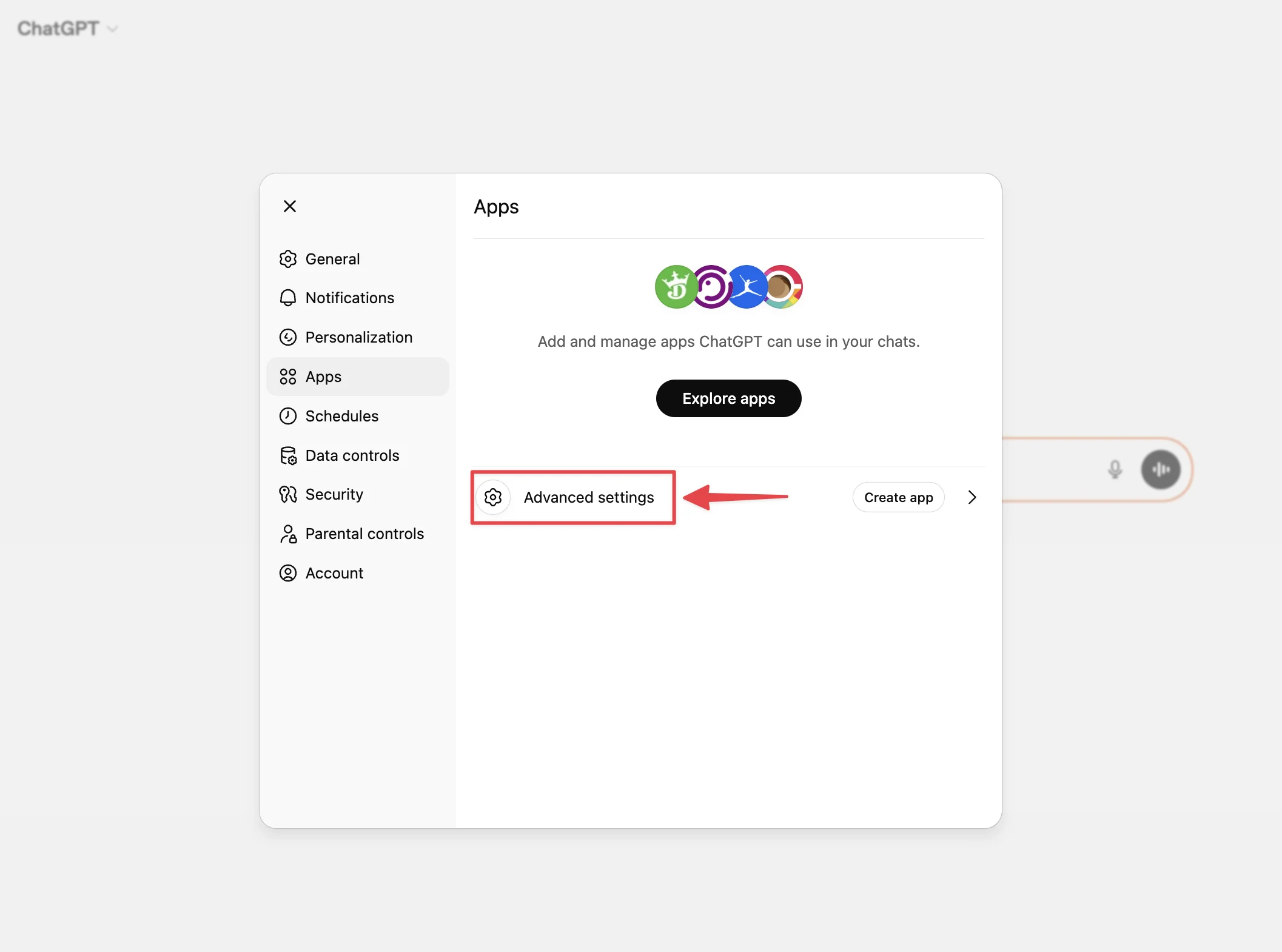
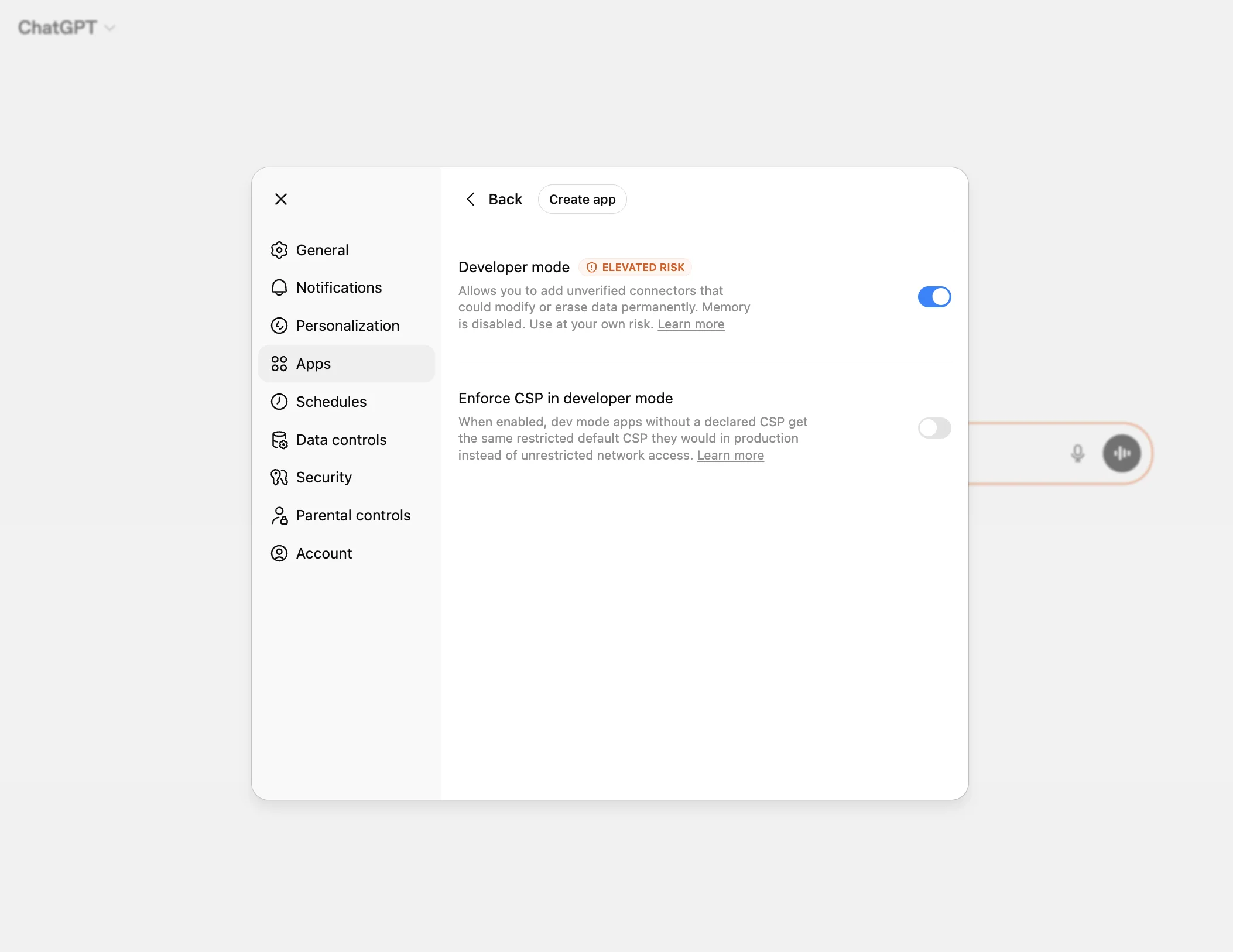
Step 2: Create the KasLens App
Once developer mode is enabled, you can add the KasLens MCP server as an app:
- Go to ChatGPT Apps settings (Settings → Apps)
- Click Create app (this button only appears when Developer mode is on)
- Enter the following server URL:
``` https://kaspa-lens.com/mcp ```
- Click Add or Create
- The KasLens app will appear under Drafts in your Apps settings
Optional: You can use the KasLens logo as the app icon. Download the logo and upload it when creating the app.

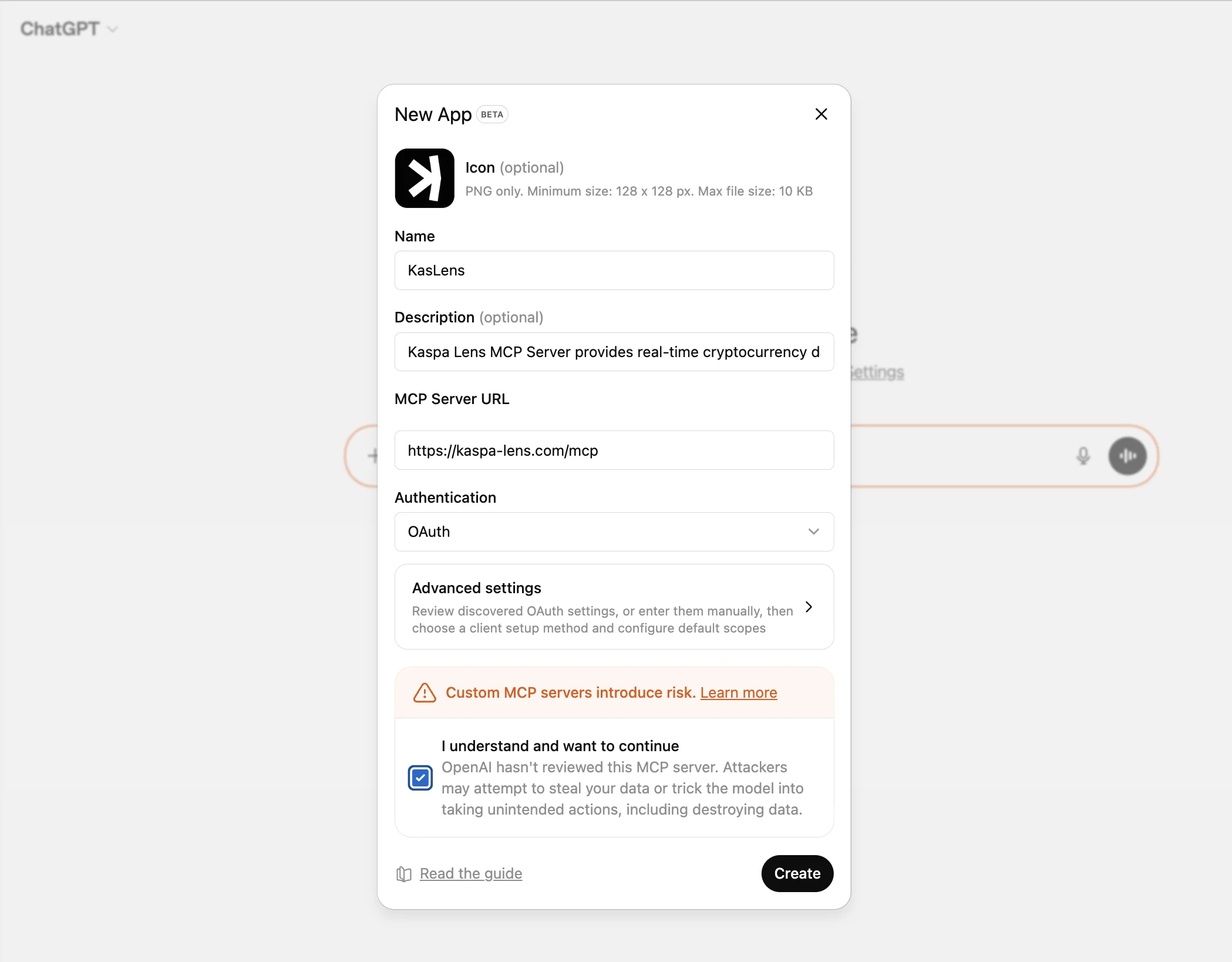
Step 3: Authenticate with KasLens
- Start a new conversation on chatgpt.com
- In the message composer, click the + (Plus) menu
- Select Developer mode and enable the KasLens app
- Send a message that triggers a KasLens tool , for example: "What is the current Kaspa price?"
- ChatGPT will initiate the OAuth flow , a browser window opens showing the KasLens login page
- Enter your KasLens email and password and click Sign in
- Authorize ChatGPT to access your KasLens data
- The connection is now active for this conversation
Step 4: Start Using It
You can now ask ChatGPT questions about Kaspa. For example:
- "What is the current Kaspa price and 24h volume?"
- "What are the economic events today and how might they influence the Kaspa price?"
- "Summarize today's Kaspa daily pulse"
- "Show me the top 10 Kaspa addresses by balance"
- "What KRC-20 tokens have the highest market cap?"
ChatGPT will use the KasLens MCP server to fetch live data and include it in its responses.
Tip: Be explicit in your prompts. If ChatGPT does not use KasLens automatically, try: "Use the KasLens app to get the current Kaspa price."
Troubleshooting
"Create app" button does not appear
Make sure Developer mode is enabled in Settings → Apps → Advanced settings. The button only shows when Developer mode is active.
"The server does not support Dynamic Client Registration"
This means ChatGPT could not register itself with the KasLens authorization server. This is usually a temporary server-side issue. Try again in a few minutes. If the problem persists, contact [email protected].
The login page does not appear
Make sure pop-ups are not blocked in your browser. ChatGPT opens the OAuth login in a new window.
"Invalid credentials" on the login page
Double-check that you are using your KasLens account credentials (not your ChatGPT credentials). If you forgot your password, reset it here.
"Email not verified"
You need to verify your email address before you can log in. Check your inbox (and spam folder) for the verification email from `[email protected]`.
MCP works on the web but not in the desktop/mobile app
Developer mode with MCP support is currently only available in the web version at chatgpt.com. The ChatGPT desktop and mobile apps do not yet support MCP for all subscription tiers.